


 Video Converter


You are aware that QuickTime files are all MOV files that were created by Mac. WMV, on the other hand, is created by Microsoft and mostly used in Windows. The two sorts of format files are fully incompatible with the applications based on their respective platform since the two enormous firms are in a constant state of competition with one another. For instance, Windows Media Player is unable to play QuickTime MOV files. For widespread usage on the Windows platform, you must convert QT to WMV. You may simply and quickly convert QT video to WMV format for Windows or Mac by using the finest QT to WMV converter provided in this post.
Contents: Part 1. Can Windows Open QuickTime Files? Part 2. How Do I Quickly Convert QT to WMV on Mac/Windows?Part 3. Online QT to WMV Converters You May Want to Know Part 4. Conclusion
Part 1. Can Windows Open QuickTime Files?
Determine if Windows computers can open QT files directly before starting the conversion procedure. Unfortunately, QT files are not natively supported by Windows. The default program for opening QT files, QuickTime Player, is mainly made for Mac computers. Because of this, Windows users who try to play QT files natively on their devices could run into compatibility problems. Converting QT to WMV (Windows Media Video) format is the best option to guarantee smooth playing on Windows devices.
Part 2. How Do I Quickly Convert QT to WMV on Mac/Windows?
You may convert between any common format without worrying about incompatibility thanks to iMyMac Video Converter for Mac, which can convert QT to WMV and supports the majority of file formats and codecs. Besides WMV, it can also help you easily convert QT into MP4.
Additionally, you may modify videos to provide a unique visual impact before converting. You can easily use it because of how quickly it operates and how simply it is to use. Let me now demonstrate how to use the finest video converter for Mac to convert QT to WMV.
- Launch iMyMac Video Converter on your computer, either the Mac or Windows version.
- Another option is to drag and drop the QT file onto the system's display.
- A drop-down menu with options like WMV will show when you click "Convert Format," allowing you to choose the kind of file the original should be converted into.
- The UI makes it easier to locate file revisions. You are free to make whatever changes you want to the files.
- You may save all of your changes by selecting Save.
- Select a conversion option from the toolbar to begin the conversion.
Part 3. Online QT to WMV Converters You May Want to Know
Now aside from the fact that you can simply use the iMyMac Video Converter to convert your QuickTime videos to WMV, there are also other ways how you can convert it. And one of the options that you can do is by using an online tool for you to convert any file format that you want. And that is why we are going to show you some of the free QT converters that you can use to turn QuickTime videos into WMV.
FreeConvert.com
We advise using FreeConvert if you need a free online QT to WMV converter. More than 1500 file types may be handled by this online converter. Now you may rely on FreeConvert to make the conversion QT to WMV files. Due to its 256-bit SSL encryption, using this online tool is secure and safe. Therefore, after the two-hour conversion, the data won't exist. It is simple to use, so both pros and beginners may utilize it.
- First, visit the Freeconvert website.
- To select the video you wish to convert to QT format, select Choose Files, and finally click Open. A URL, a file on your PC, a Dropbox account, or a Google Drive account are all acceptable additions. To choose a different choice, click the right arrow beside "Choose Files."
- To change the video or audio settings, hover the mouse pointer on the Cogwheel symbol. Click Apply Settings after that.
- Click on "WMV Conversion." Upon completion of the conversion, choose Download WMV.
Convertio.co
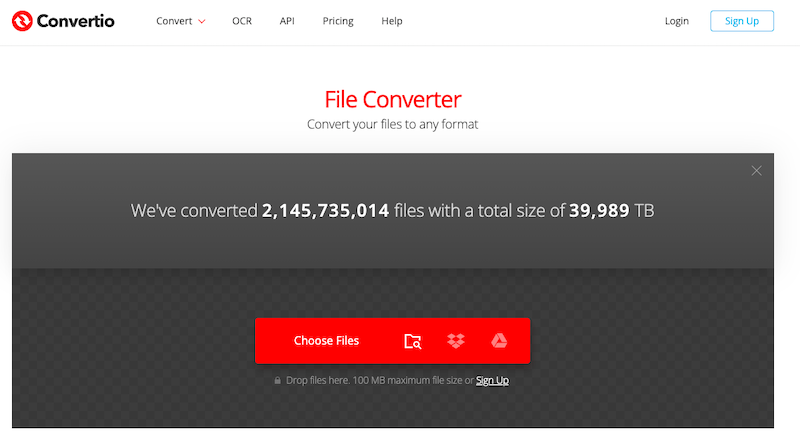
Convertio is yet another superior online QT to WMV converter. A variety of video editing options are available from Convertio. In addition to converting QT to any video format, Convertio also gives you the option of selecting the video codec, size, and channel. File conversion is possible via URL connections, Dropbox, Google Drive, local storage, and more. However, a 100MB conversion is the biggest available.
- Open a browser and go to Convertio.
- To submit your QT files, use Dropbox, your PC, or Google Drive. Remember that QT contributions for free users are limited to 100MB.
- Select QT from the drop-down option. Select the gear-shaped icon to open the Settings box and make the appropriate video and audio changes.
- Select the Convert option to convert QT to WMV for free online.
- After the conversion is finished, get the WMV file and save it locally.
Zamzar.com
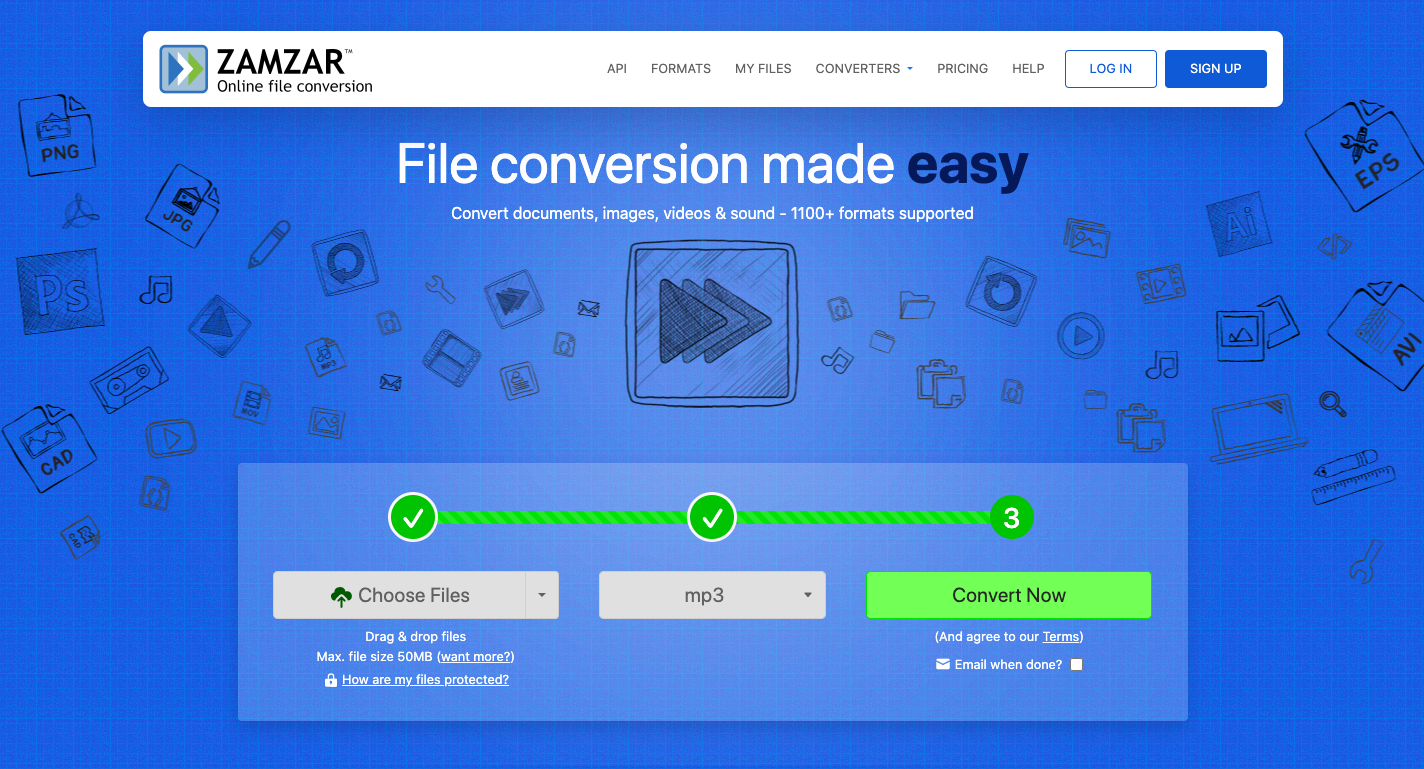
If you'd like to convert QT to WMV without downloading any software on your computer, Zamzar is a free online converter that may assist you in doing so by converting QT to WMV. It is really safe to use and simple. Using this converter tool and your web browser, you may instantly convert QT to WMV online. Additionally, it will email you the converted files. Since Zamzar also supports other video formats, you may convert a wide variety of video files at no cost.
- Launch Zamzar on your computer's browser.
- Select from your computer or a URL to add the QT file you wish to convert.
- From the drop-down option, choose WMV as the output format.
- To obtain converted files, you must give your email address.
- Once you have accepted the conditions, you may click the Convert button.
Part 4. Conclusion
In conclusion, QT to WMV conversion is necessary for Windows systems compatibility and smooth playing. Although QT files are not natively supported by Windows, there are effective converting tools available. You now know how to convert QT to WMV format quickly, whether you want to use offline software like iMyMac Video Converter or choose the ease of internet solutions like Freeconvert.com, Convertio.co, or Zamzar.com.
Remember that by exporting QT to WMV, you guarantee that your digital material may be viewed smoothly and without interruption on a larger variety of systems and devices. Make the QT files accessible with Windows computers right away and take use of the WMV format's flexibility.


