


 Video Converter


In the realm of digital media, compatibility is key. If you've ever encountered difficulties playing an RMVB (RealMedia Variable Bitrate) video file on your preferred media player or device, fear not. Converting your RMVB files to the widely supported MKV (Matroska Video) format can open up a world of possibilities. Whether you seek optimal quality, broader compatibility, or a range of advanced features, this article will walk you through the process of converting RMVB to MKV. Join us as we delve into the details of this transformation, empowering you to enjoy your media files without limitations.
Contents: Part 1. How to Convert RMVB to MKV with High Quality?Part 2 . Easy Ways to Convert RMVB to MKV Online for FreePart 3. What Is the Difference between RMVB and MKV?Part 4. Conclusion
Part 1. How to Convert RMVB to MKV with High Quality?
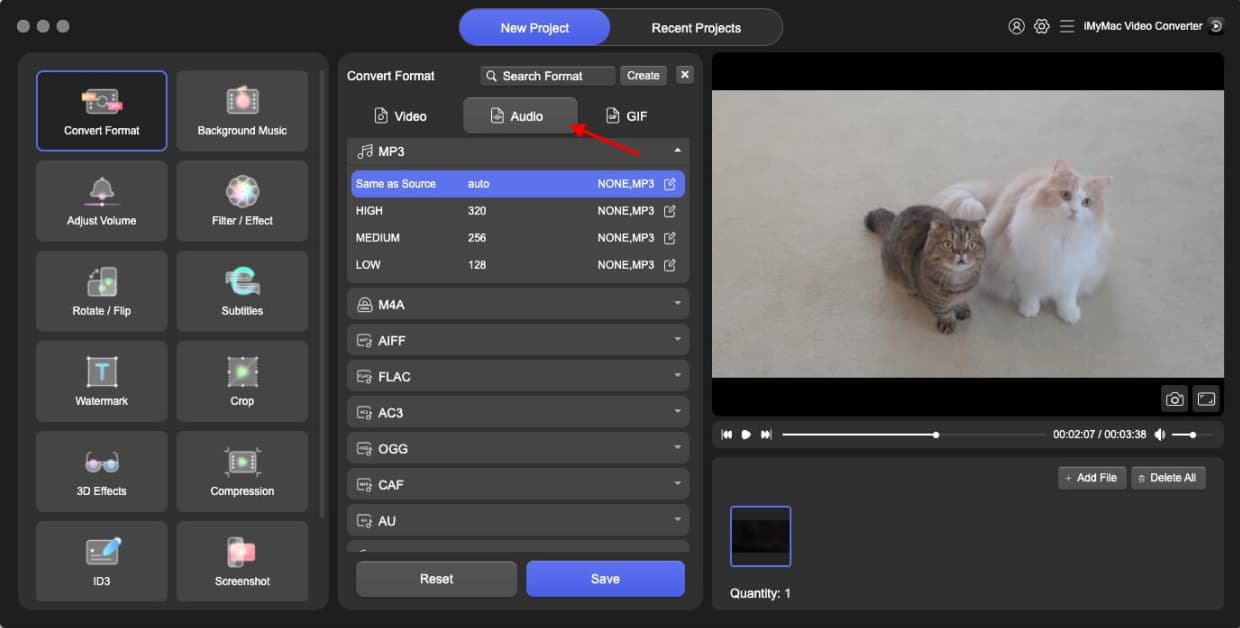
When it comes to converting RMVB files to MKV format with high quality, one reliable tool that stands out is iMyMac Video Converter. This versatile software offers a seamless conversion process, ensuring your videos retain their original quality while being transformed into the MKV format. Besides MKV, it can also help you easily turn RMVB into MP4. Additionally, a variety of editing capabilities, including video cutting, cropping, rotating, combining, and compressing, are included.
To begin the conversion process, follow these simple steps:
- Download and install iMyMac Video Converter: Start by obtaining the iMyMac Video Converter software from the official website. Install it on your computer and launch the program.
- Add the RMVB files: Click on the “Add Files” button within the iMyMac Video Converter interface. Browse through your computer’s directories and select the RMVB files you want to convert.
- Select MKV as the output format: In the output format section, choose MKV as the desired format for the converted files. iMyMac Video Converter supports a wide range of output formats, ensuring flexibility according to your needs.
- Adjust settings if desired: iMyMac Video Converter offers customization options to further enhance your video conversion experience. You can modify parameters such as resolution, bit rate, frame rate, and more to achieve the desired output quality. Select a destination folder where the files will be saved.
- Convert RMVB to MKV: Once you have selected the output format and adjusted the settings, click on the “Convert” button to initiate the conversion process. iMyMac Video Converter will efficiently convert your RMVB files to MKV format while maintaining high-quality output.
With iMyMac Video Converter, converting RMVB to MKV has never been easier. Experience the convenience and superior quality that this reliable software offers, unlocking the true potential of your media files.
Part 2 . Easy Ways to Convert RMVB to MKV Online for Free
While dedicated software like iMyMac Video Converter provides excellent results, you may prefer a quick and hassle-free online free video converter for converting RMVB to MKV. Here, we introduce three reliable online tools that offer free conversion services: FreeConvert, Zamzar, and CloudConvert.
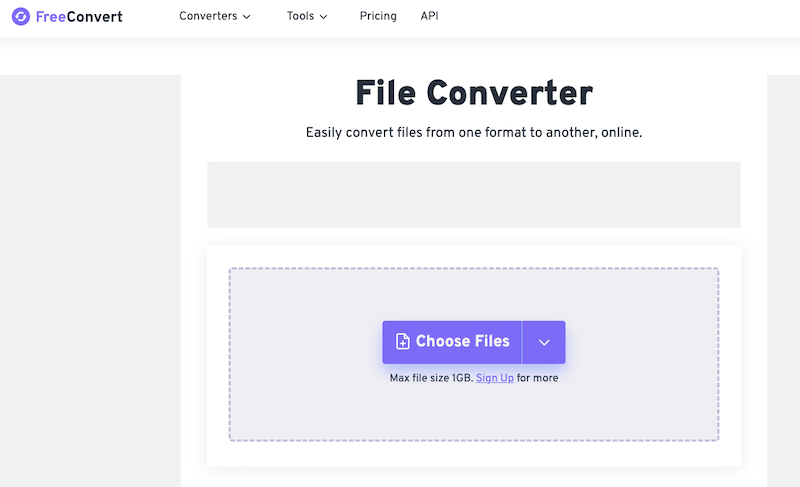
FreeConvert (www.freeconvert.com)
FreeConvert is a popular online conversion platform that supports a wide range of file formats, including RMVB to MKV. Here's how to use it:
- Visit the FreeConvert website.
- Select the "Video Converter" tool from the menu.
- Click on the "Choose Files" button and upload your RMVB file.
- Choose "MKV" as the output format.
- Optionally, you can adjust the video settings if desired.
- Click the "Convert" button to start the conversion process.
- Once the conversion is complete, download the converted MKV file.
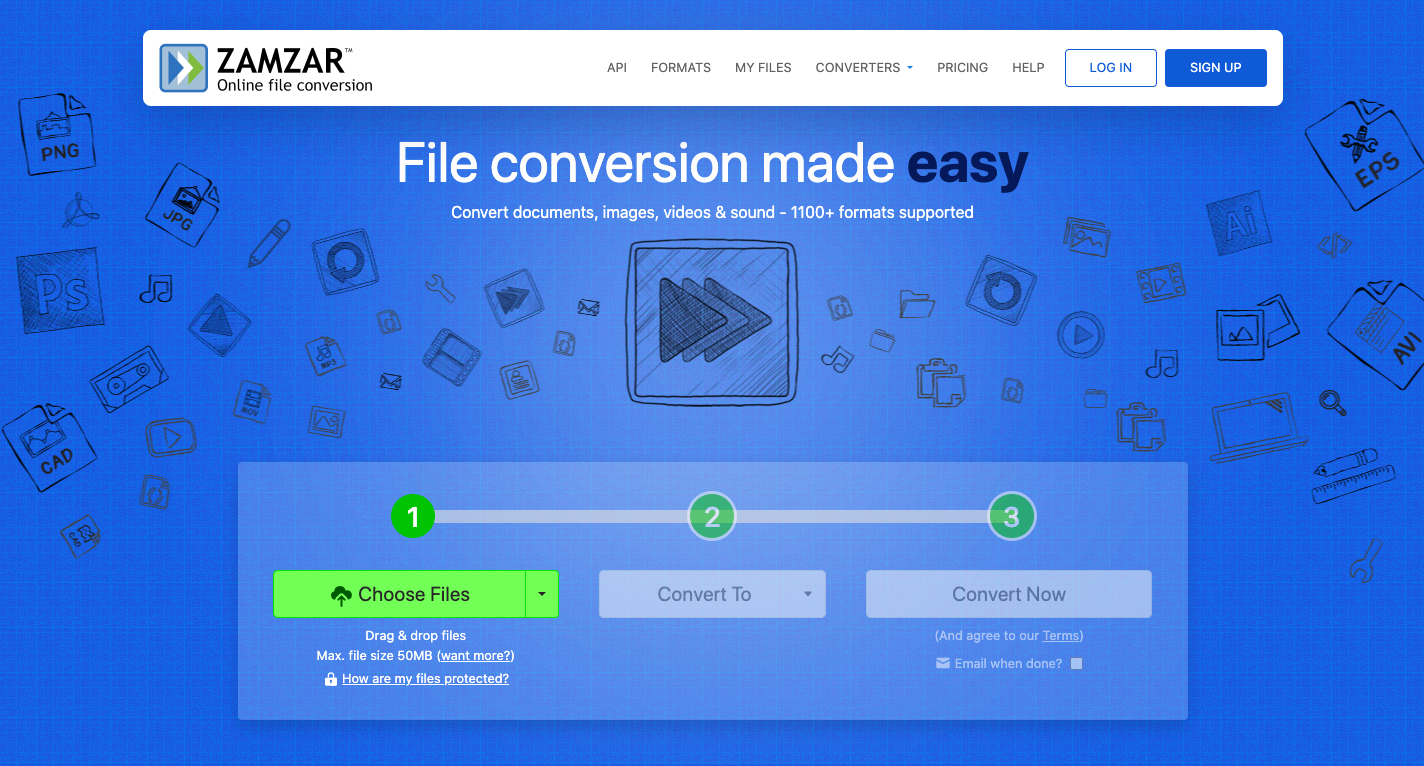
Zamzar (www.zamzar.com)
Zamzar is another reliable online file conversion service that simplifies the process of converting RMVB to MKV. Here's a brief guide to using Zamzar:
- Go to the Zamzar website.
- Click on the "Add Files" button and upload your RMVB file.
- Choose "MKV" as the output format.
- Enter your email address to receive the converted file.
- Click the "Convert" button to initiate the conversion process.
- Check your email for a download link to the converted MKV file.
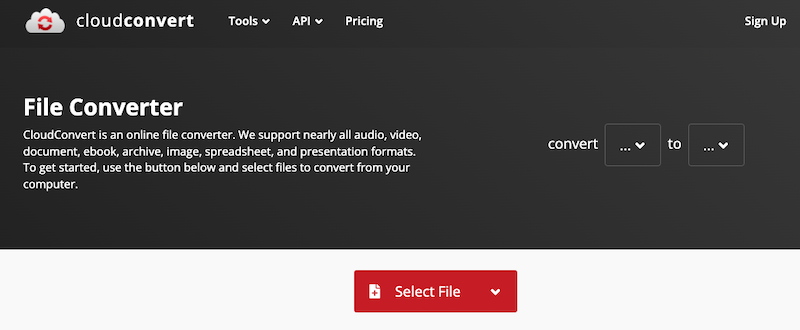
CloudConvert (www.cloudconvert.com)
CloudConvert offers a user-friendly interface and a range of supported file formats, making it an excellent choice for converting RMVB to MKV online. Here's how to use it:
- Access the CloudConvert website.
- Click on the "Select Files" button and upload your RMVB file.
- Choose "MKV" as the output format.
- Optionally, you can make adjustments to the video settings.
- Click the "Start Conversion" button to begin the conversion process.
- Once the conversion is finished, click the "Download" button to save the MKV file.
These online tools provide convenient and free options for converting RMVB to MKV. While they may have additional features and limitations, they serve as reliable solutions when you need a quick conversion without the need for installing software on your computer. Remember to consider factors such as file size limitations and internet connection speed when using online conversion tools.
In conclusion, whether you prefer dedicated software or online tools, converting RMVB to MKV has become more accessible than ever. Choose the method that suits your needs and enjoy the benefits of MKV format's versatility and compatibility with various media players and devices.
Part 3. What Is the Difference between RMVB and MKV?
RMVB (RealMedia Variable Bitrate) and MKV (Matroska Video) are two distinct video file formats with notable differences in their features and characteristics.
RMVB:
- RMVB is a proprietary format developed by RealNetworks primarily used for streaming purposes.
- It uses a variable bitrate encoding scheme, meaning the video's bitrate can vary throughout the file.
- RMVB files are known for their relatively small file sizes, making them suitable for online streaming and file sharing.
- However, RMVB files may have limited compatibility with certain media players and devices due to their proprietary nature.
MKV:
- MKV is an open-source multimedia container format that can hold various types of media data, including video, audio, and subtitles.
- It supports a wide range of codecs and is highly versatile, allowing for high-quality video and audio playback.
- MKV files can store multiple audio and subtitle tracks, making them ideal for media with multilingual or varied audio options.
- The format also supports advanced features like chapters, menus, and metadata, enhancing the overall viewing experience.
- However, MKV files tend to have larger file sizes compared to RMVB due to their increased versatility and support for high-quality content.
In summary, RMVB is a proprietary format optimized for streaming and smaller file sizes, while MKV is an open-source format offering greater versatility, compatibility, and advanced features. Understanding the differences between these formats can help you choose the most suitable one for your specific needs and preferences.
Part 4. Conclusion
In the realm of converting RMVB to MKV, various options are available, ranging from online tools to dedicated software. While online conversion tools like FreeConvert, Zamzar, and CloudConvert offer convenience, they may have limitations such as file size restrictions and internet dependency.
For a reliable and comprehensive solution, iMyMac Video Converter stands out as the best tool for the job. Its intuitive interface, extensive format support, and high-quality output make it an excellent choice for converting RMVB to MKV. Whether you seek simplicity, advanced customization options, or superior output quality, iMyMac Video Converter empowers you to unlock the true potential of your media files with ease. Choose iMyMac Video Converter and experience hassle-free RMVB to MKV conversions with outstanding results.


